A TV as an order board in a showroom
How to turn an ordinary TV into an order board: what it shows, how it announces a ready order, how to match it to your brand and how to keep customer names private.
A TV on the wall costs little, yet it can lift a question off your staff that comes up all day long: "How much longer for my order?" A well-designed order status display screen tells customers by itself what is happening with each order, using the same colour language that your warehouse and till colleagues already use.
This article is a how-to: what the board should show, how to set it up and what to watch for when you install it. The feature overview of the screen is on the customer screen page.
Why a TV and not a sheet of paper
In a distribution showroom the customer orders next to the consultant, then the goods are prepared in the warehouse. Between those two moments there is no way for the customer to know the stage of the order. Without information, they ask at the till, ask the consultant, ask anyone passing by. A TV board replaces those questions with a glance at the wall.
The screen refreshes by itself one or two seconds after any change. It does not depend on someone moving a slip of paper or wiping a name off a whiteboard.
What the board shows
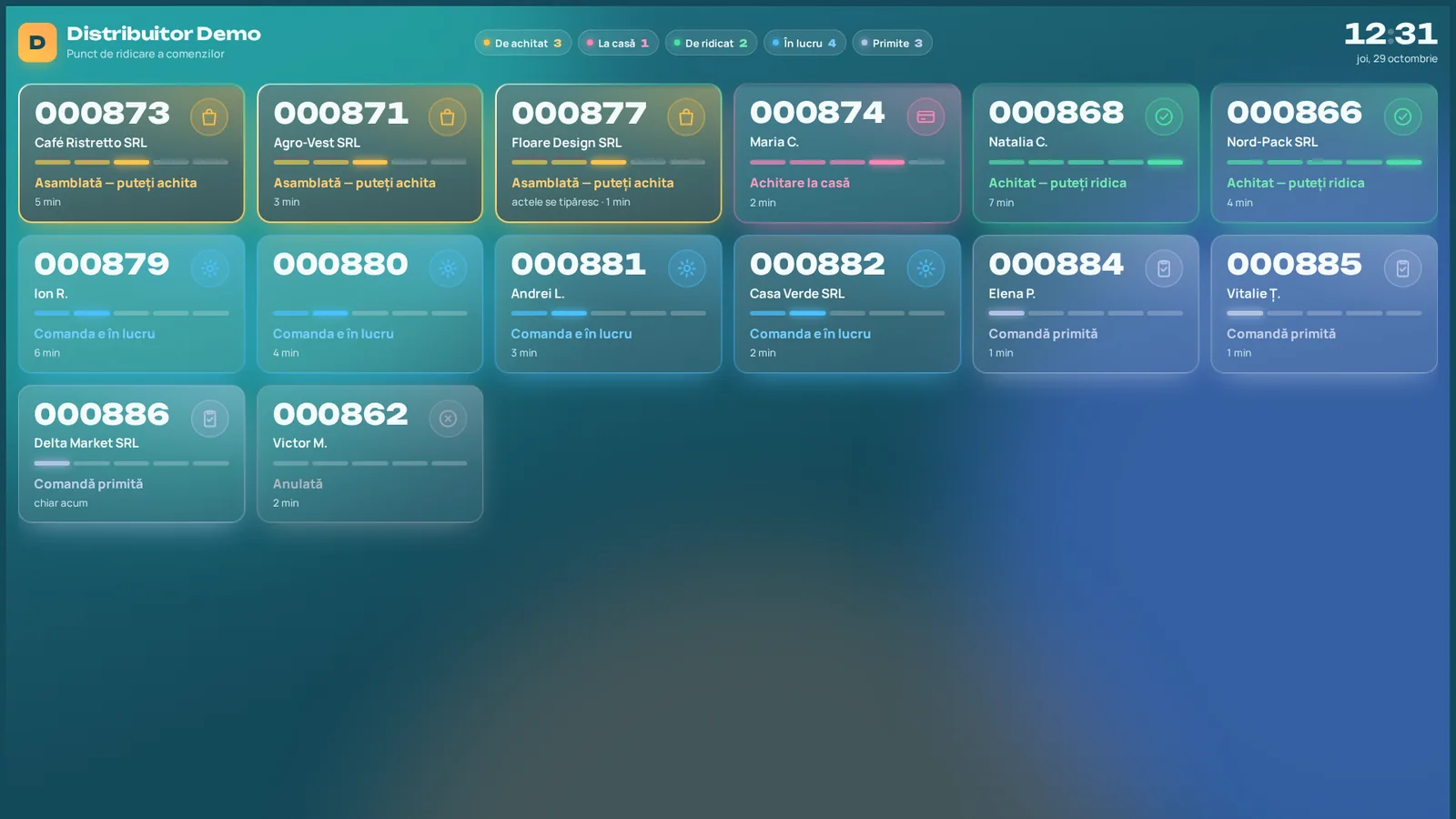
Every order has three elements: code, name and stage. The code is the one the customer received on the printed slip (see the pickup code), so it is instantly recognisable. The stage is marked by a colour, and the screen also shows how long the order has been waiting.
| Stage | Colour | What it means to the customer |
|---|---|---|
| Received | grey-blue | The order is registered |
| In progress | light blue | The goods are being prepared |
| Ready (to pay) | yellow | Head to the till |
| At the till | pink | The order is picked up at the till |
| Paid | green | Payment is done |
The same colours appear in the order list in the web interface, so the manager and the customer speak the same language.
The "ready" moment
The yellow stage matters most. When your ERP system confirms picking, the order takes over the whole screen: a large code, the name and a message that the customer can pay at the till, with an animation and a sound. After a few seconds the screen returns to the list. The effect is the fast-food one: customers see their code and know what to do.
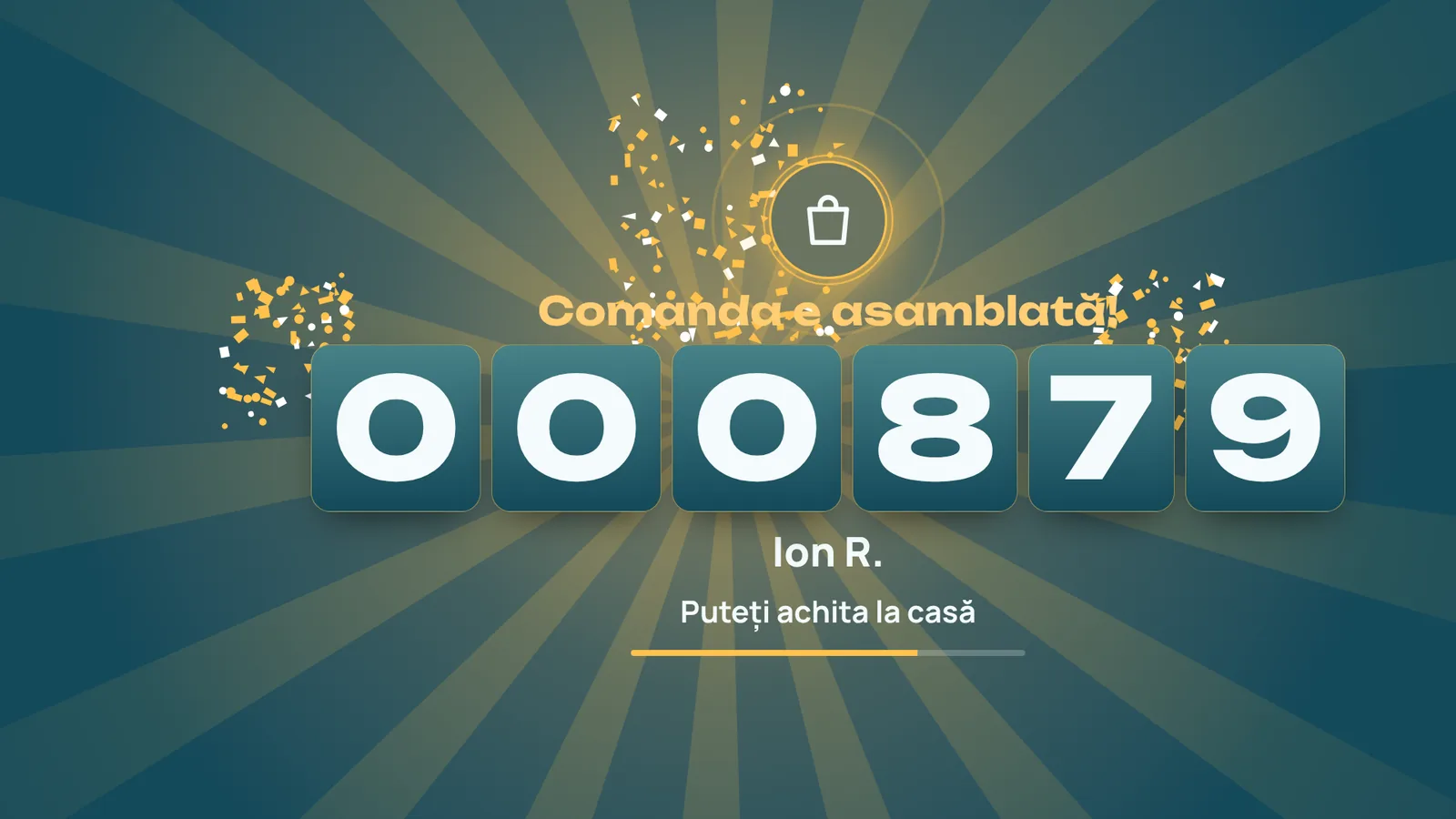
If your showroom is noisy, or you prefer silence, the sound can be adjusted.
Customer names: what the room can see
Everyone in the showroom can see the board. For this reason, private individuals' names can be shown shortened, for example "Ion R.". A customer created with a code only, without personal data, appears by code. Companies show their name, which does not raise the same issue. Choose the rule that fits how you work and tell your consultants what customers will see.
Your colours and your texts
The board should not look like a foreign app. In the web interface, with no programming, you can choose:
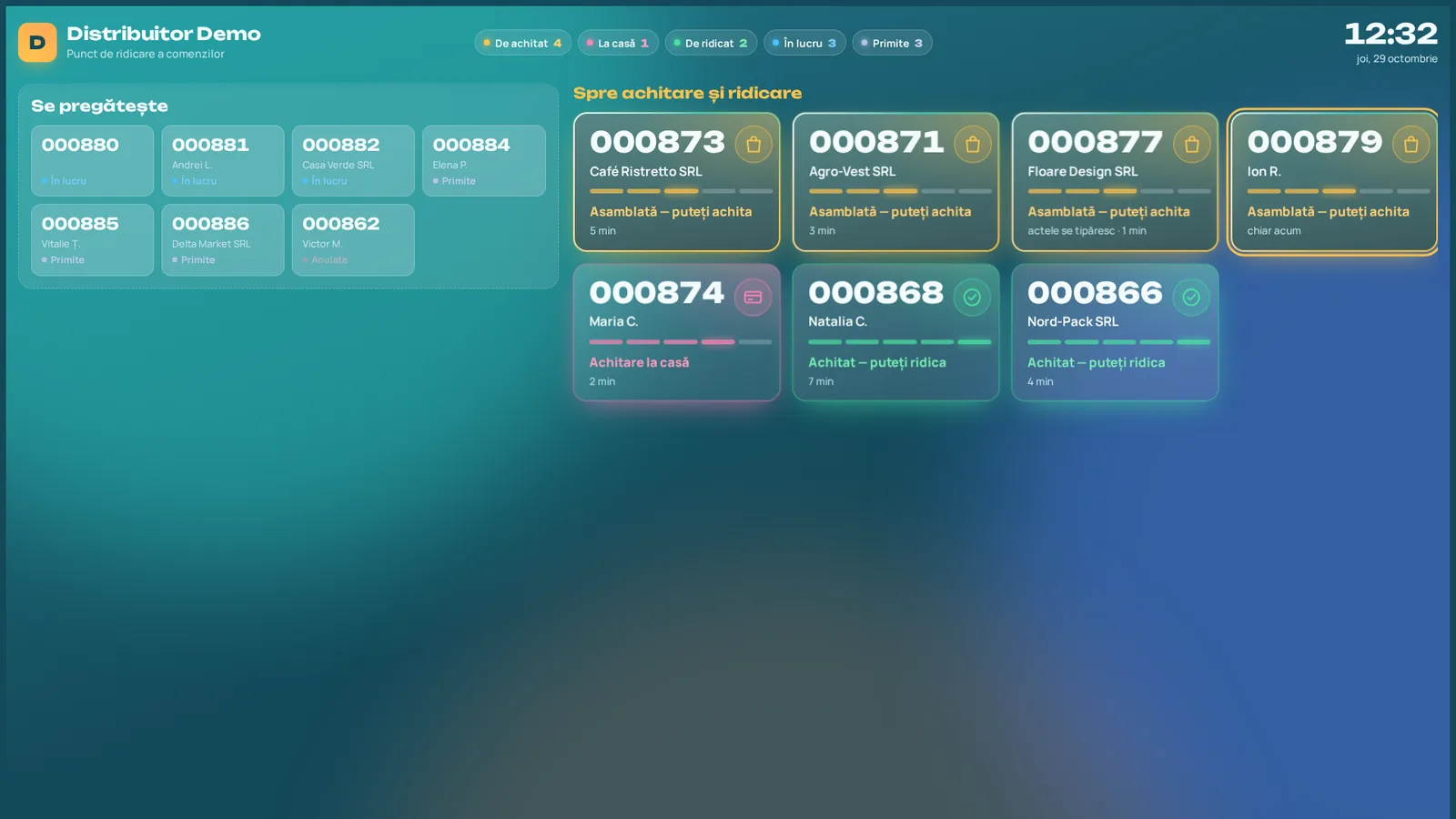
- The theme, colours, frames and backgrounds, in the style of your company or website
- A split into two zones: "Being prepared" and "To pay"
- The text shown for each stage
- Sound and animation
- Display language: Romanian or Russian
The screen reloads by itself after you save, so you can try variants without walking over to the TV.
What you need to install it
A TV with an HDMI input and a PC or mini-PC with a browser, connected to the TV. No special equipment is required. Connecting takes a few minutes:
Open the /tv address
In the browser of the computer next to the TV.
Enter the code in administration
A code appears on screen; the administrator enters it in the web interface and names the screen.
Let it start
The screen remembers the connection, even after a restart, and can be disconnected at any time.
When you mount the TV, think about the viewing angle from both the waiting area and the till area. A board visible only from the consultant's desk does not do its job.
If you would like to see the board with your own codes and colours, book a demo.
Read next
Articles
How to organize sales by samples in a showroom
From the sample on the floor to the ERP order: what is scanned, what the consultant sees, where errors usually creep in and how to avoid them.
Read more →Showroom software: a selection checklist
Ten questions to put to any vendor before you choose showroom software: from the sample to the till, with the ERP system and the customer screen in between.
Read more →Terminal or tablet: what to choose for consultants
Built-in scanner, battery for a full shift, screen, ruggedness: what to choose for showroom consultants, a terminal, a tablet or a phone.
Read more →See the solution on your own order flow
A 30-minute conversation about your real showroom and warehouse processes, with no generic slides.