Themes, colours, frames and backgrounds
The screen can follow your brand or your website.
A TV in the showroom shows every order and its stage, and when the goods are ready the code fills the whole screen. It connects with a code, no technical skills needed.
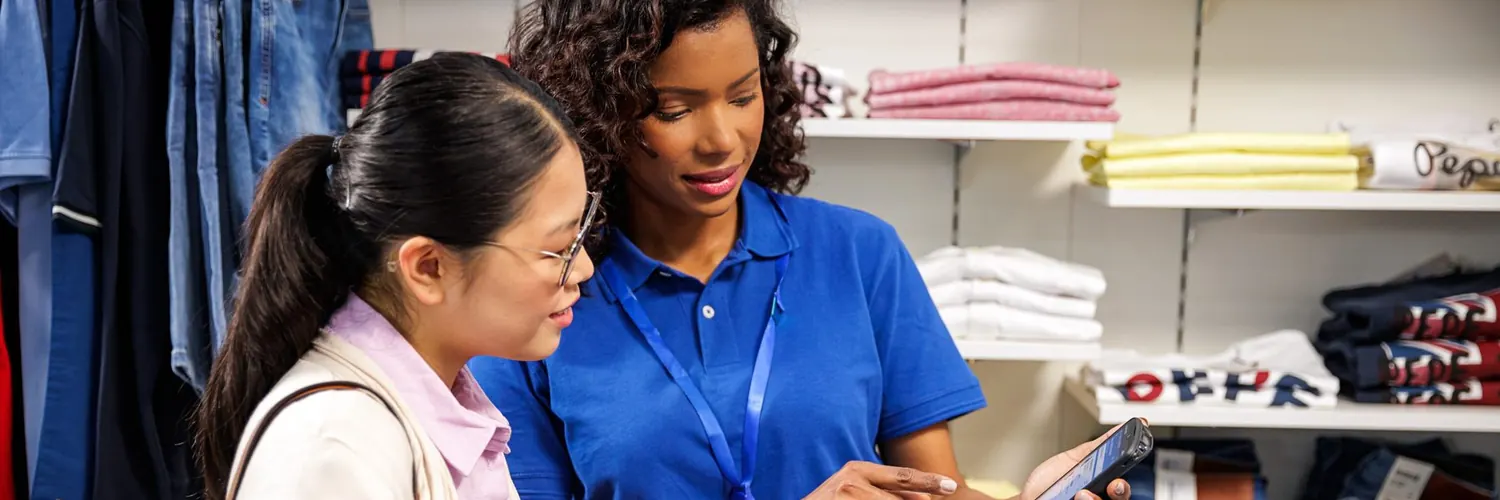
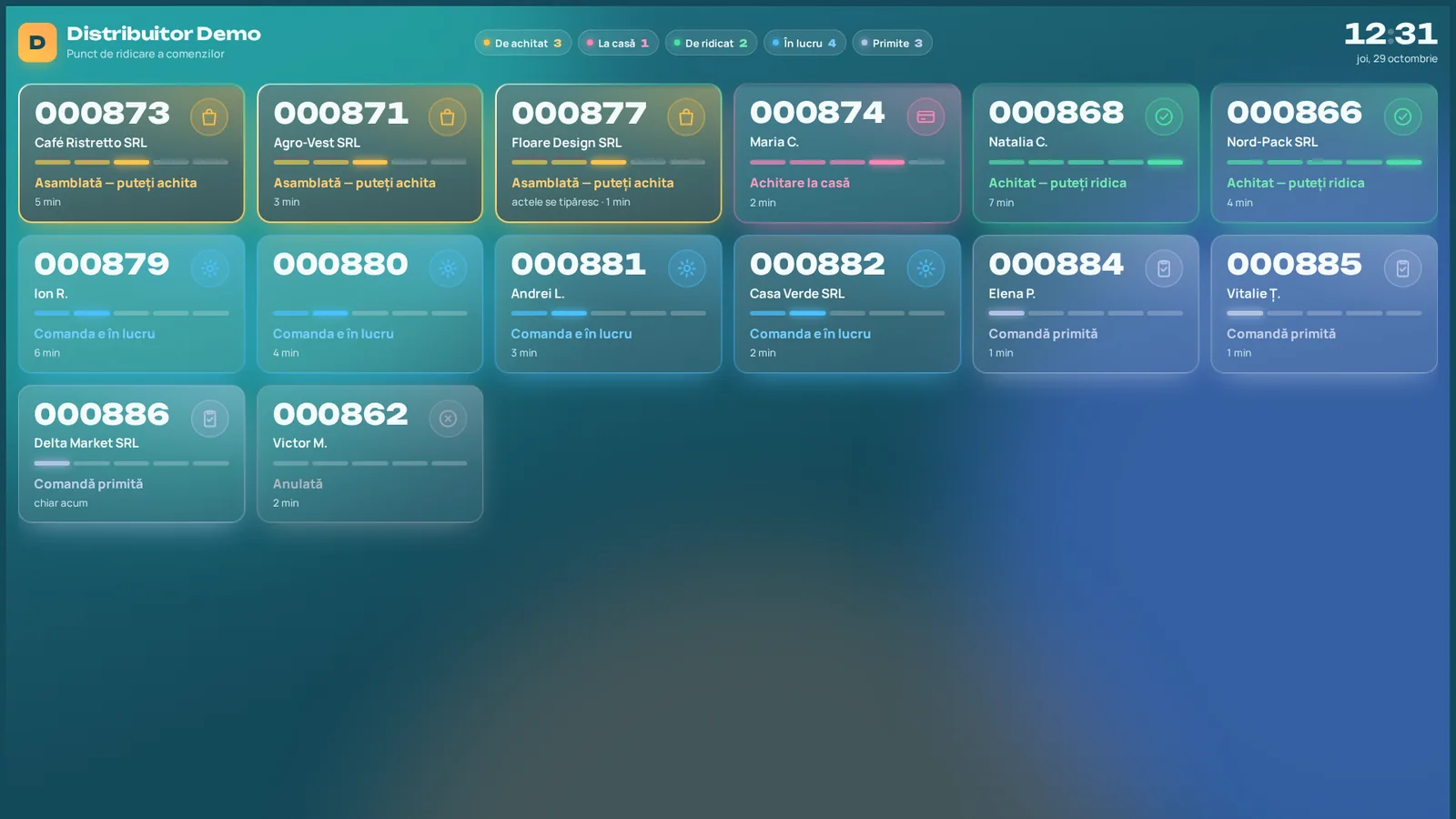
An order status display screen on a TV answers the question customers ask most often at the till: "Is my order ready?" A customer order display lists the day's orders, each with its code, name and stage, so shoppers can see where they stand without asking anyone.
It is the visible part of the "Customer orders" module. The same short code the consultant gave the customer appears on the screen, and the stage changes as the order moves between the showroom, the warehouse, the till and your ERP system.
On the screen, every order shows its code, name and stage, marked with a colour that stays the same throughout the process. The screen refreshes by itself one or two seconds after any change, with no page reload.
"Received" is grey-blue, "In progress" is light blue, "Ready" (also "to pay") is yellow, "At the till" is pink and "Paid" is green. You can also see how long an order has been waiting.
The key moment is when the ERP system confirms that the order has been picked. The order then takes over the whole screen: a large code, the name and a message that the customer can pay at the till, with an animation and a sound. It works like a fast-food counter: customers recognise their code and know they can head to the till. After a few seconds the screen goes back to the list.
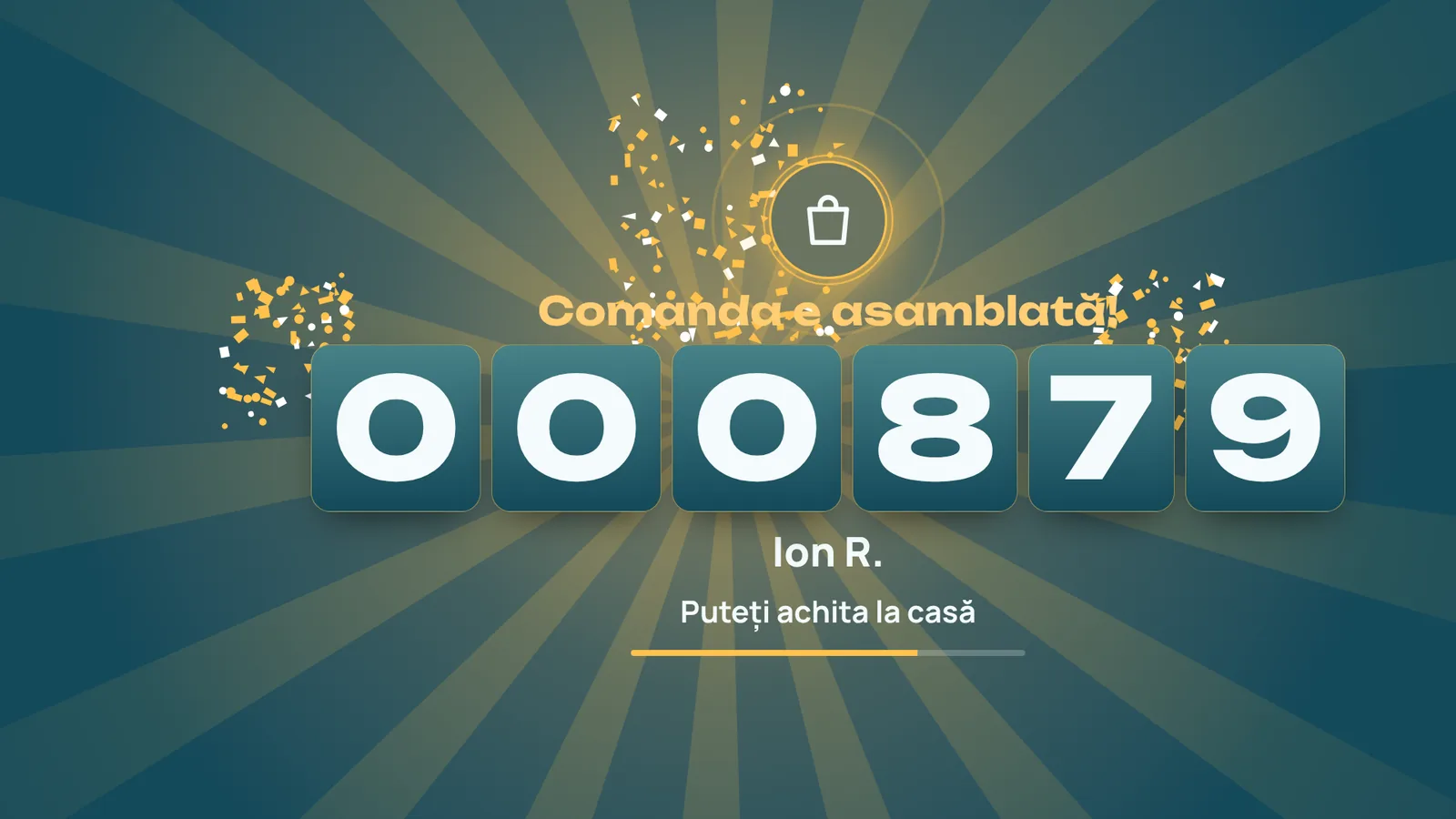
For private individuals the name can be shortened, for example "Ion R.", so other visitors in the showroom do not see full details. A customer created with a code only, without personal data, simply appears by code.
Appearance is set in the web interface, with no programming, and the screen reloads by itself after you save:
The screen can follow your brand or your website.
A split into "Being prepared" and "To pay".
Write the message shown for every stage as you like.
For important moments, such as an order being ready.
Romanian or Russian, depending on your showroom visitors.
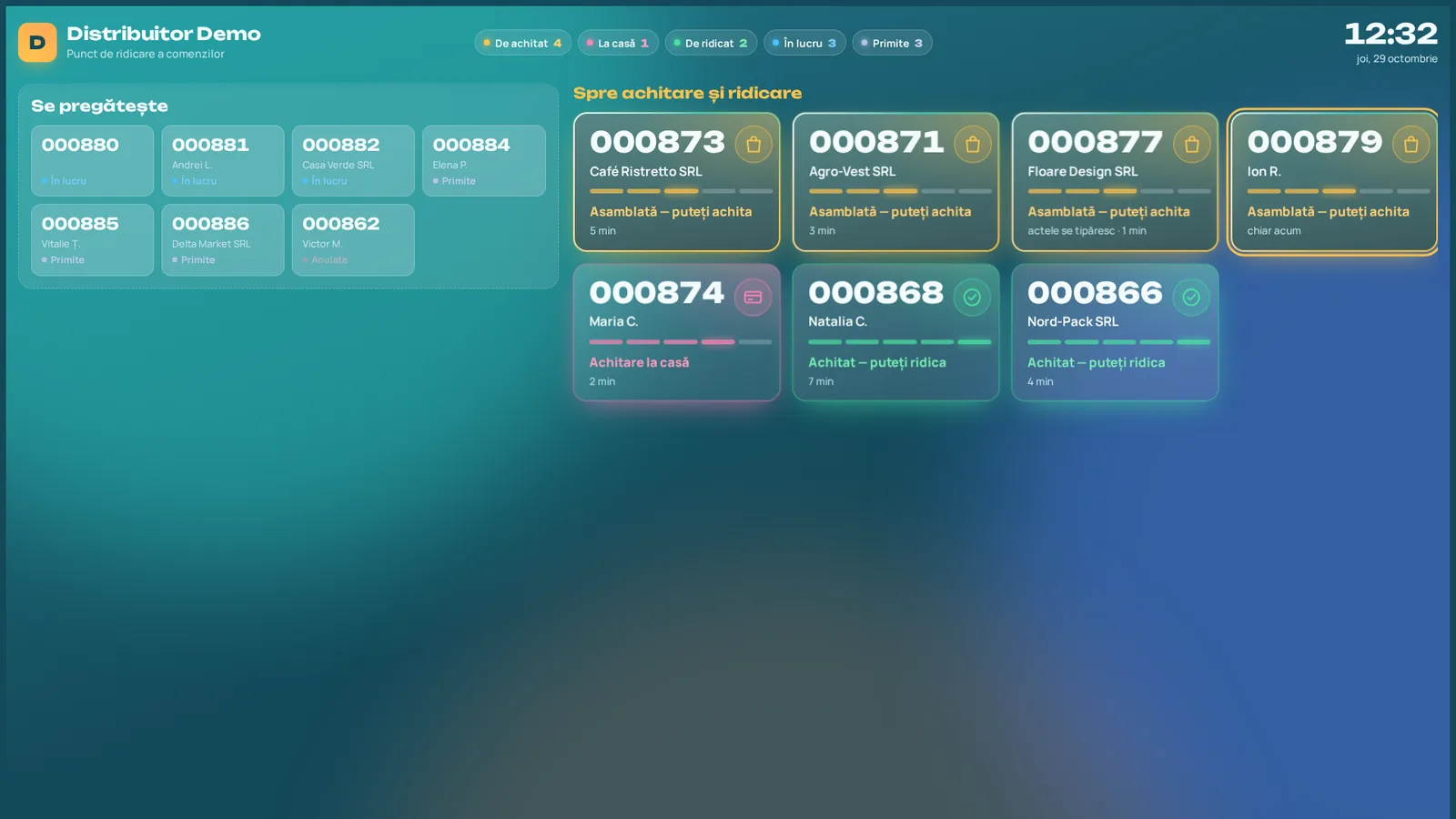
No technical knowledge is needed. You need a TV with an HDMI input and a PC or mini-PC with a browser.
On the computer next to the TV, open your system's short /tv address in the browser; a code appears on the screen.
In the web interface, give the screen a name and enter the code.
A few seconds later the TV shows the orders and remembers the connection, even after a restart. A screen can be disconnected from administration at any time.
To see how it looks with your own data, request a demo. There is also an overview of the module on wms.md.
A 30-minute conversation about your real showroom and warehouse processes, with no generic slides.